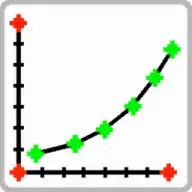
Auto-Trace Curves in Engauge Digitizer: Segment Fill & Point Match
⚡ Quick Answer
Filter by color first (the step most people skip), then pick your tool: Segment Fill for solid continuous lines, Point Match for dashed or thin lines. Click on the curve to seed the tool, let it trace, then clean up stray points with the zoom window.
Step 0: Color Filtering (The Secret Step)
Automatic tracing fails most often because Engauge cannot tell your curve apart from grid lines, text, or background noise. Before tracing anything, narrow the image down to just your curve’s color:
- Open the filter: Use the color filter controls to isolate the curve color.
- Sample the curve: Click directly on your data curve so the filter learns its exact color.
- Tighten the range: Adjust until the preview highlights only the curve — grid lines and labels should disappear from the highlight.
- Proceed: Now the tracing tools see a clean image containing essentially just your data.
💡 Tip: If two curves share similar colors, trace them one at a time: filter for the first color, trace, export, then repeat for the second color.
Tool 1: Segment Fill (Solid Lines)
Segment Fill works like a paint-bucket fill: it floods outward from the pixel you click, following connected pixels of the filtered color. It is the fastest option for solid, unbroken curves.
- Filter first: Complete the color filtering step above.
- Select the tool: Choose the Segment Fill tool from the toolbar.
- Click the curve: Click anywhere on your data curve. Engauge floods the connected region and converts it to data points.
- Check coverage: Zoom along the curve — if the fill stopped early (a gap in the line), click the unfilled segment to continue it.
Tool 2: Point Match (Dashed & Thin Lines)
Point Match scans along the axis direction looking for pixels that match your curve’s color. It handles dashed, dotted, and hairline-thin curves that Segment Fill cannot flood.
- Seed the color: With Point Match active, click one dash or segment of your curve.
- Set the scan direction: Tell Engauge whether to scan left-to-right (X) or bottom-to-top (Y).
- Run and review: Engauge places a point on every matching dash. Review the result in the zoom window.
When Automation Fails: Manual Tracing
No shame in it — for noisy scans or overlapping curves, manual tracing with the zoom window is often faster than fighting the automation:
- Use the Point Tool and click along the curve; the zoom window shows a magnified view for pixel-accurate placement.
- Use the Select Tool to drag misplaced points into position.
- Press Delete to remove bad points.
- For smooth curves, fewer well-placed points beat many sloppy ones — you can interpolate later in Excel or Python.
Frequently Asked Questions
Which is better: Segment Fill or Point Match?
Use Segment Fill for solid, continuous lines — it floods the connected colored region. Use Point Match for dashed, dotted, or very thin lines, where it looks for pixels matching your curve’s color along the axis direction.
Why did Segment Fill select the whole image?
The color filter is too permissive: the selected color range includes the background or grid. Narrow the color filter (the “secret step” above) until only your curve is highlighted, then run Segment Fill again.
Can I auto-trace a dashed line?
Yes — that is what Point Match is for. Click one dash of the line so Engauge learns its color, then let it scan along the axis. Increase the point density setting if dashes are far apart.
The traced curve has gaps or spikes. How do I clean it?
Zoom in and drag misplaced points with the Select Tool, delete bad points with the Delete key, or add missing points manually with the Point Tool. Small cleanups take seconds and greatly improve export quality.
Ready to try it yourself?
Download Engauge Digitizer free and follow along with this guide.
Download Engauge Digitizer